![Screen Shot 2022-07-22 at 11.54.08 AM.png]](https://help.generate.tv/hs-fs/hubfs/Screen%20Shot%202022-07-22%20at%2011.54.08%20AM.png?height=40&name=Screen%20Shot%202022-07-22%20at%2011.54.08%20AM.png)
Step 1 - Activate The Remote
Press the green Android button on the remote. If that doesn't work or you can't find it, press any other button. This should wake up the remote control.

Step 2 - Go To Desktop
Press the home button, usually marked with a house or circle icon, to go to the desktop.


Step 3 - Open The Android Launcher
On the desktop, tap the Android launcher icon.

Step 4 - Disable Monitoring
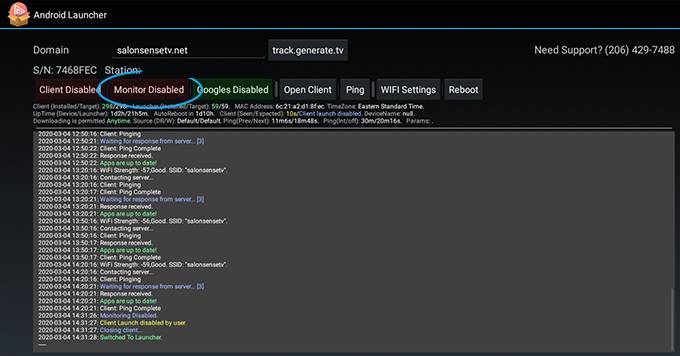
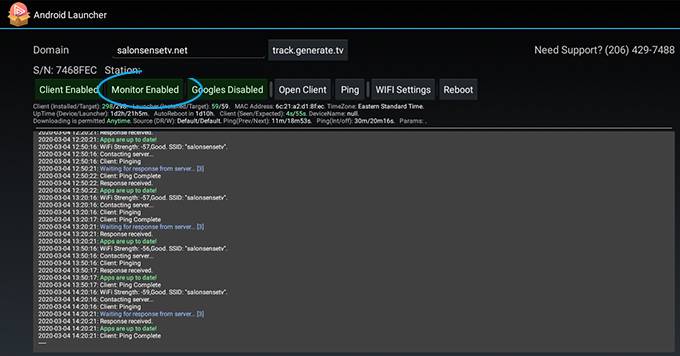
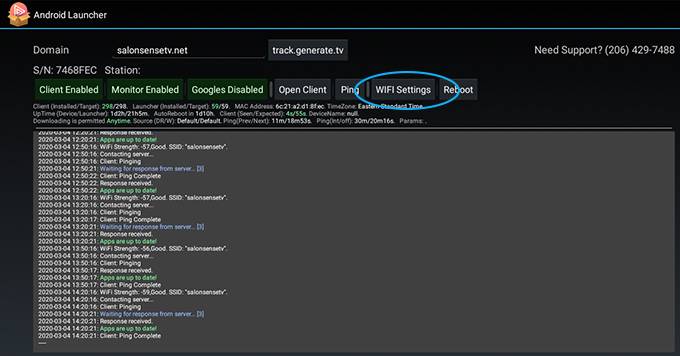
When the Android Launcher opens, you'll see a screen with text. At the top, find options like "Client Enable," "Monitoring Enabled," and "Google Disabled."
Click the "Monitoring Enabled" button in green to disable monitoring. It'll turn red when disabled.
Step 5 - Disable The Client
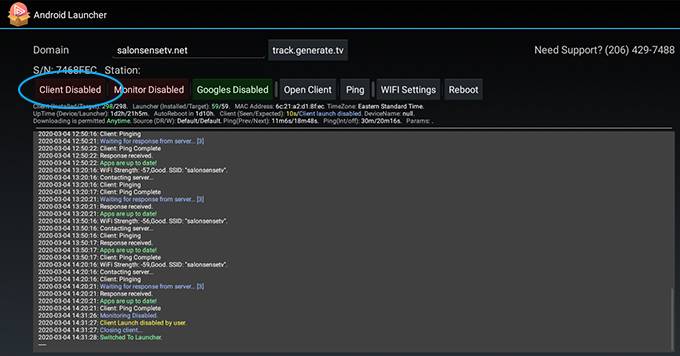
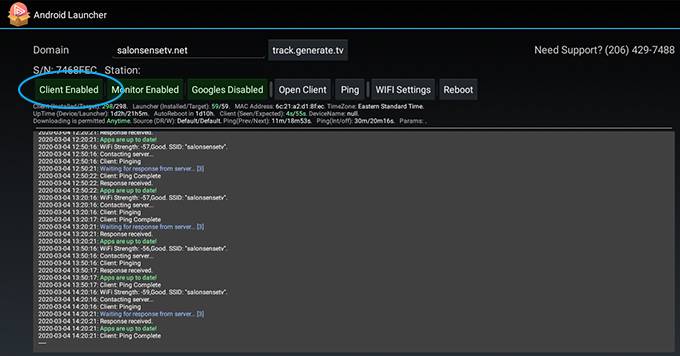
Once monitoring is disabled, find the "Client Enabled" button to the left of the Monitoring button in the same row.
Click the green "Client Enabled" button to turn it off. It'll show "Client Disabled" and turn red when disabled.
Step 6 - Go To WiFi Settings
Beside "Google Disabled," you'll find the WiFi Settings option in the same row of buttons. Click it to enter the WiFi settings screen.
Step 7 - Display Settings
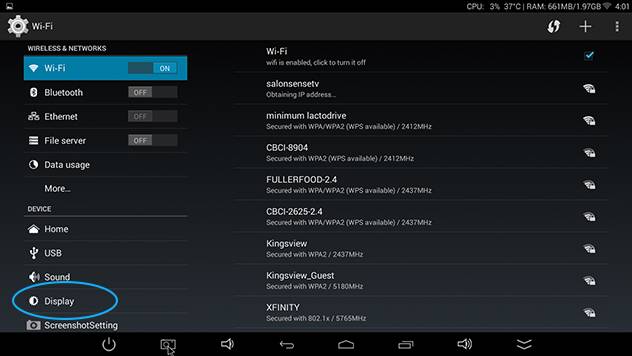
Scroll down the left sidebar until you find Display. Click on it to access the display settings. You'll see the content on the right change accordingly.
Step 8 - Screen Scale
On the right side, find the list of options and look for Screen Scale. Click on it, and a new dialog box will appear. Here, you can adjust the screen scaling. Use the OK button on the remote to switch between the +/- options, and use the arrow keys on the remote to maximize or minimize the screen on each side.
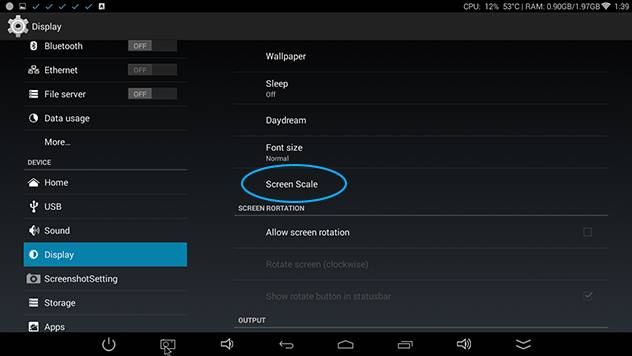
For the best display, adjust the screen scale settings until you can see a thin red line around all sides of the screen.
Step 9 - Reload The Android Launcher
Your device should now be set to the correct screen scale. Go back to the desktop screen by pressing the home button on your remote control. Once there, you can reload the Android Launcher by clicking on its icon.
Step 10 - Enable Client & Monitoring
The final step is to turn the client and monitoring back on by clicking their buttons in the top row. They should both turn green after being clicked. This action connects your device to our network and initiates the launching process. Once enabled, wait a few seconds, and the generated application will load.